Verify your identity online in minutes
We’re required by law to collect information from you to verify your identity before we can provide you with financial products or services.
With eKYC Identity Verification, you can now verify your identity online in minutes without needing to visit a branch.




Start your application
✓ Log in to start your application
✓ Review and accept the terms and conditions

Provide your photo ID
Provide one of the following forms of photo identification:
✓ Driver’s licence
✓ Passport
Document must be an original, not a digital reproduction, photocopy or certified copy.

Complete facial recognition
✓ Take a photo of yourself using your device’s built-in camera.
Accepted identity documents
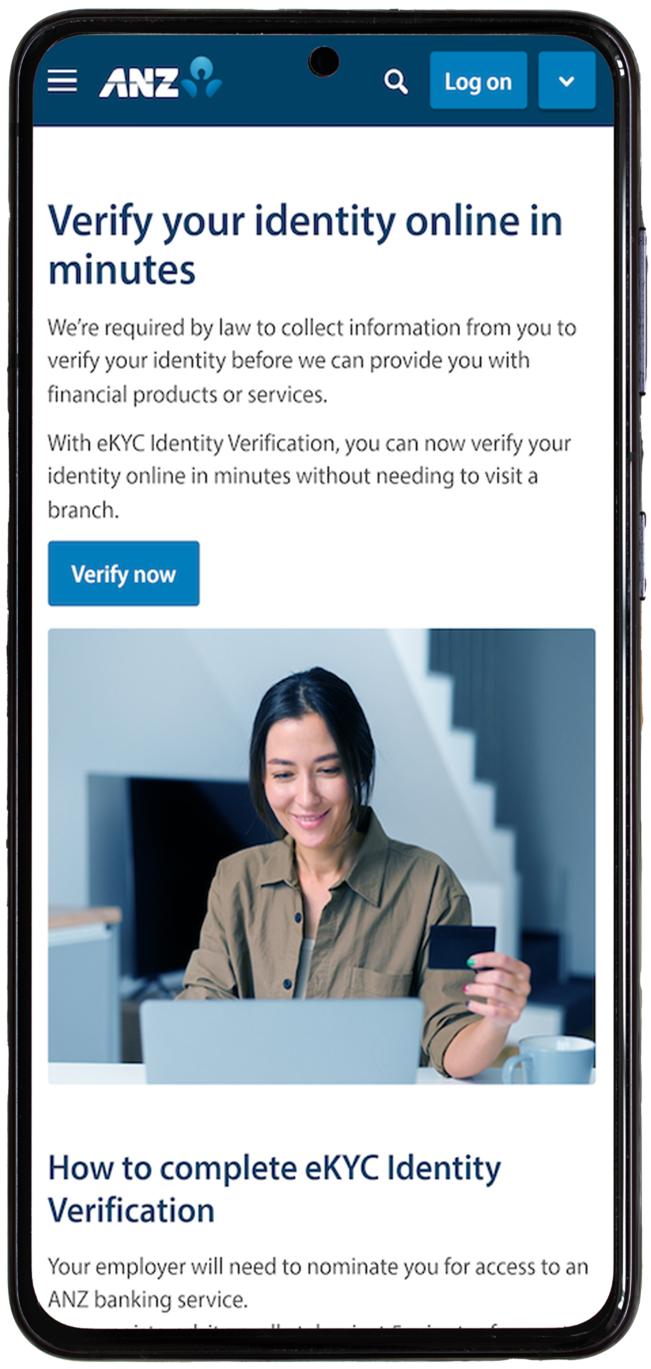
Step 1: Go to the eKYC Identification Verification page and click Verify Now.
Step 2: Enter your email address and unique Reference Number and tap Start.
Your email address will be the same one you registered with ANZ, and the Reference Number will be in the Identity Verification email from ANZ.
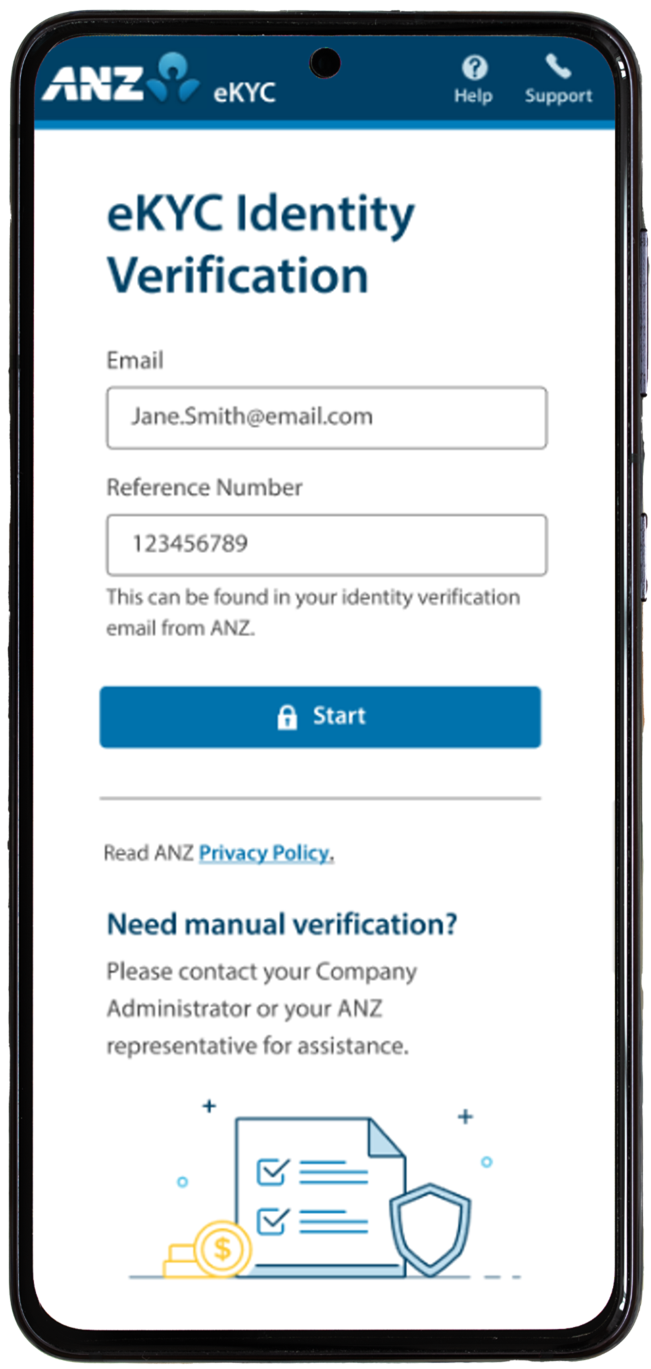
Step 3: Review and accept ANZ’s Terms & Conditions and tap Agree.
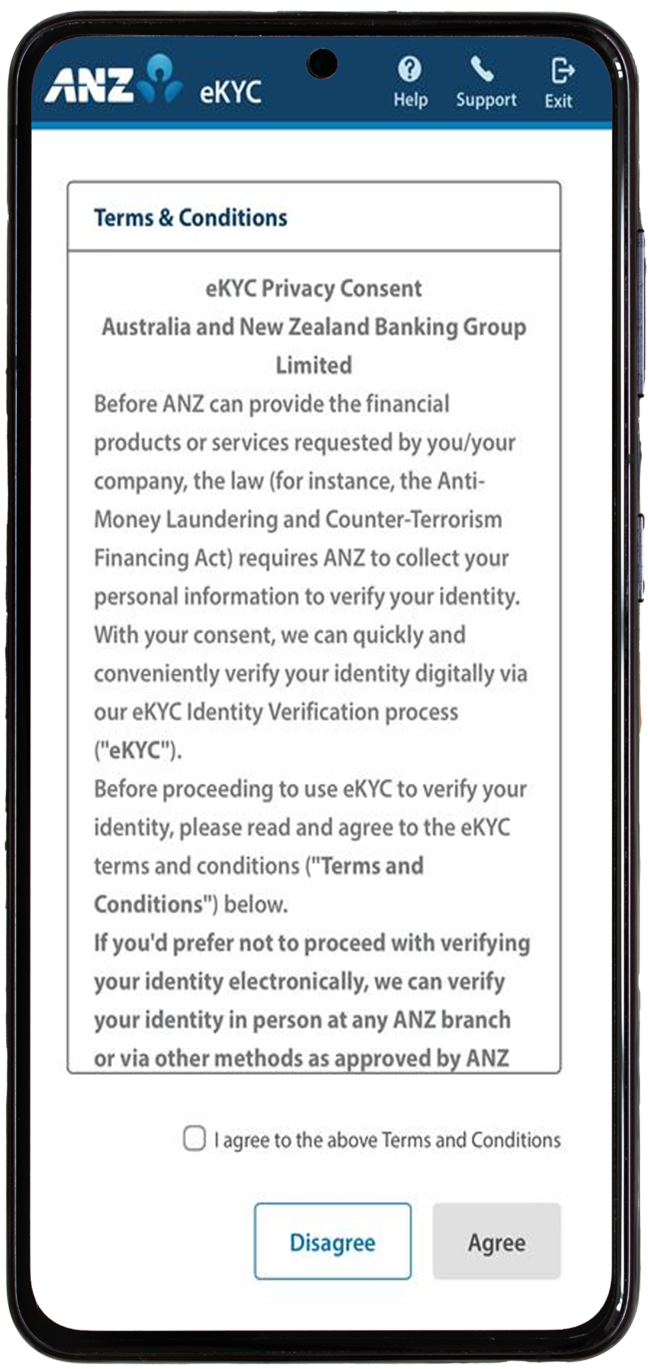
If you tap Disagree, you will not be able to proceed with eKYC and the process will end. You will need to contact ANZ to progress with your identity verification.
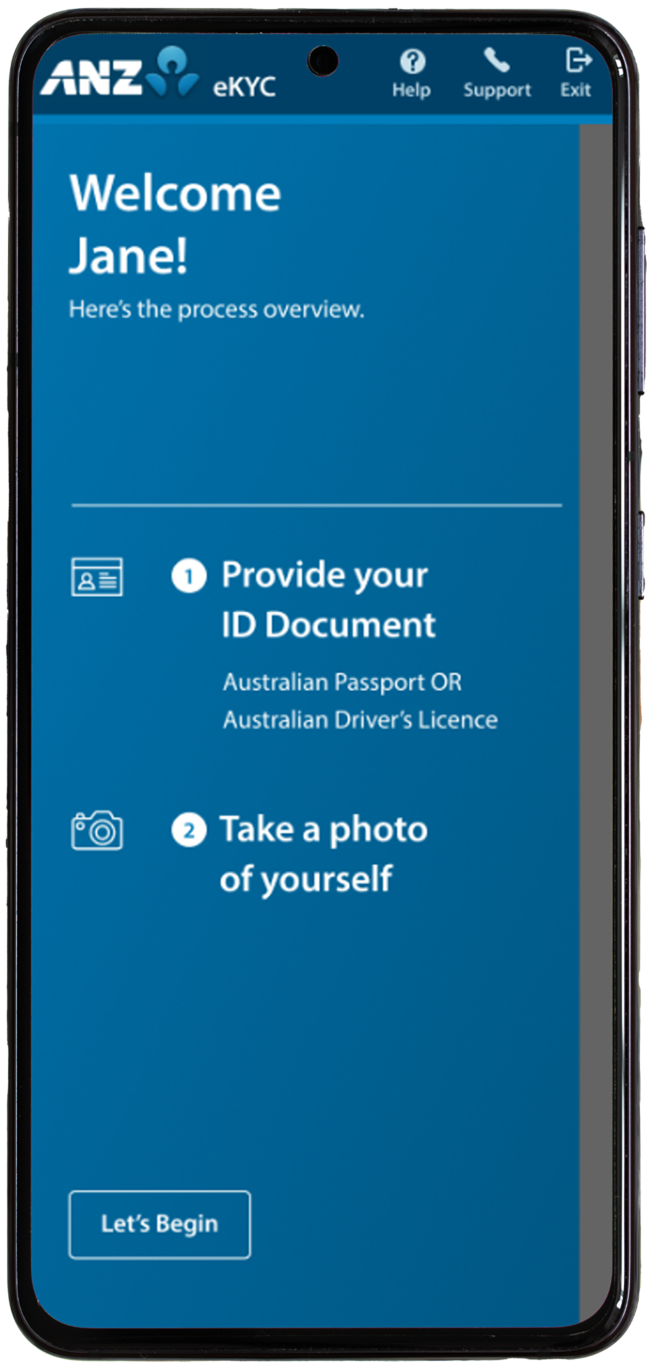
Step 4: Tap Let’s Begin.
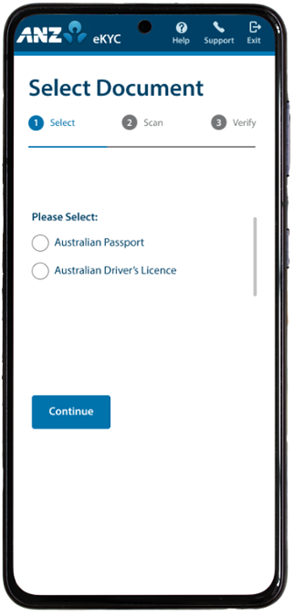
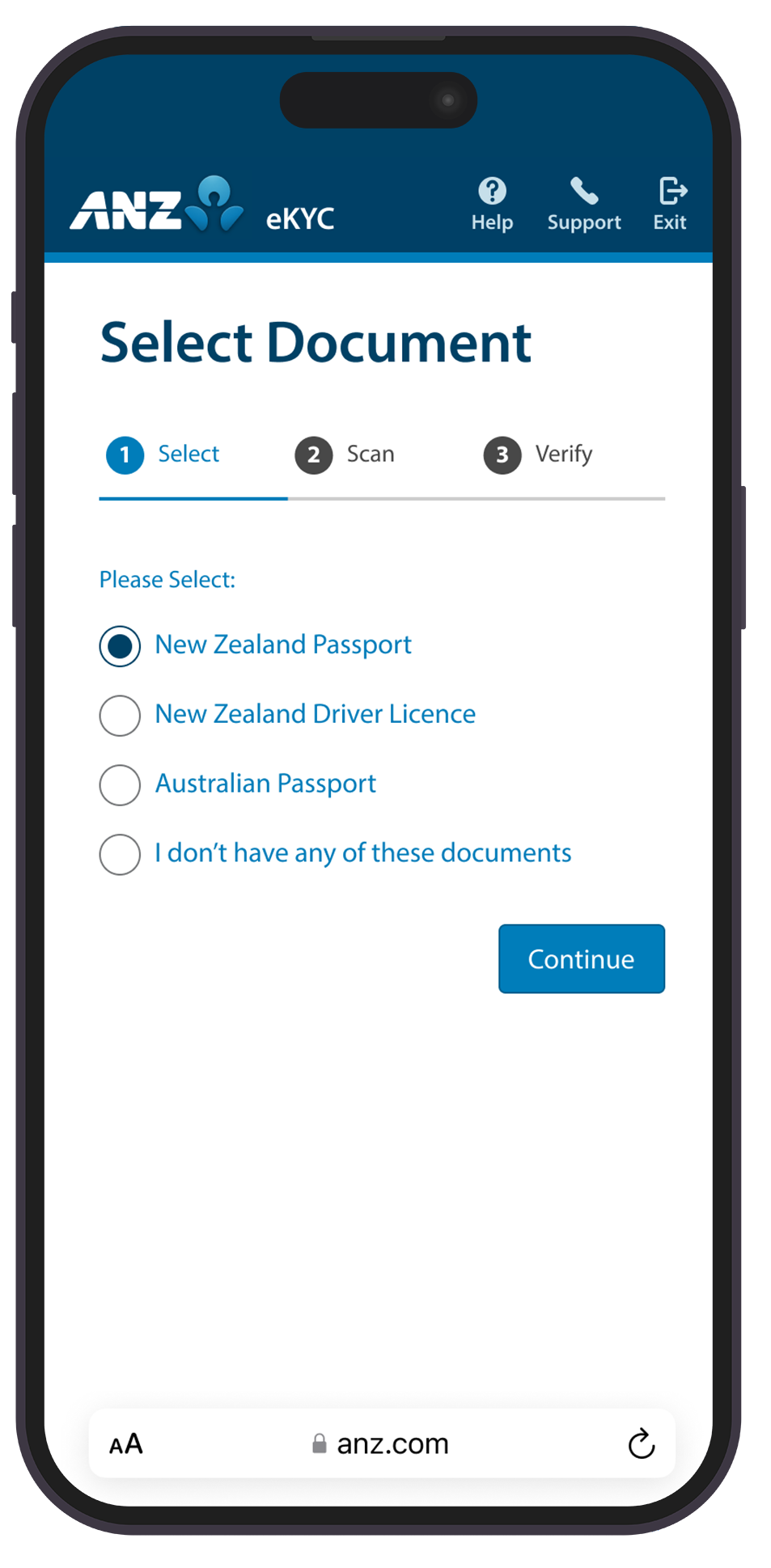
Step 5: Select a Document option:
- AU:
- Australian Passport; or
- Full Australian Driver’s Licence - (Not currently accepted for NZ verification)
- NZ:
- New Zealand Passport; or
- New Zealand Driver’s Licence; or
- Australian Passport
Tap Continue.
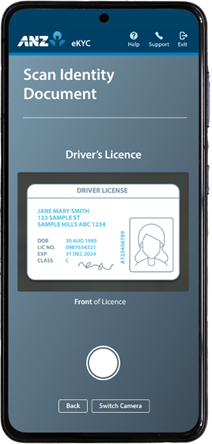
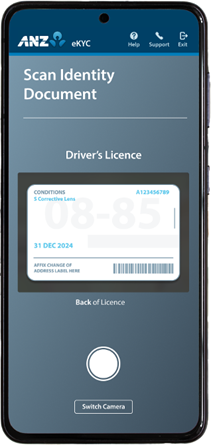
Step 6: Scan your hard copy Identity Document and tap the shutter button, then tap Submit.
If there is an issue with the scan, tap Retake and try again. For best results, ANZ recommends laying your document on a clean and flat surface.
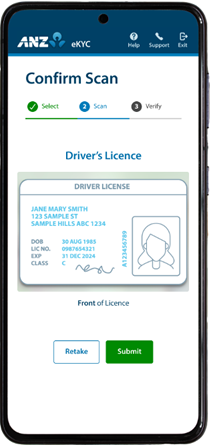
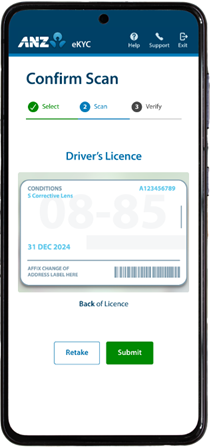
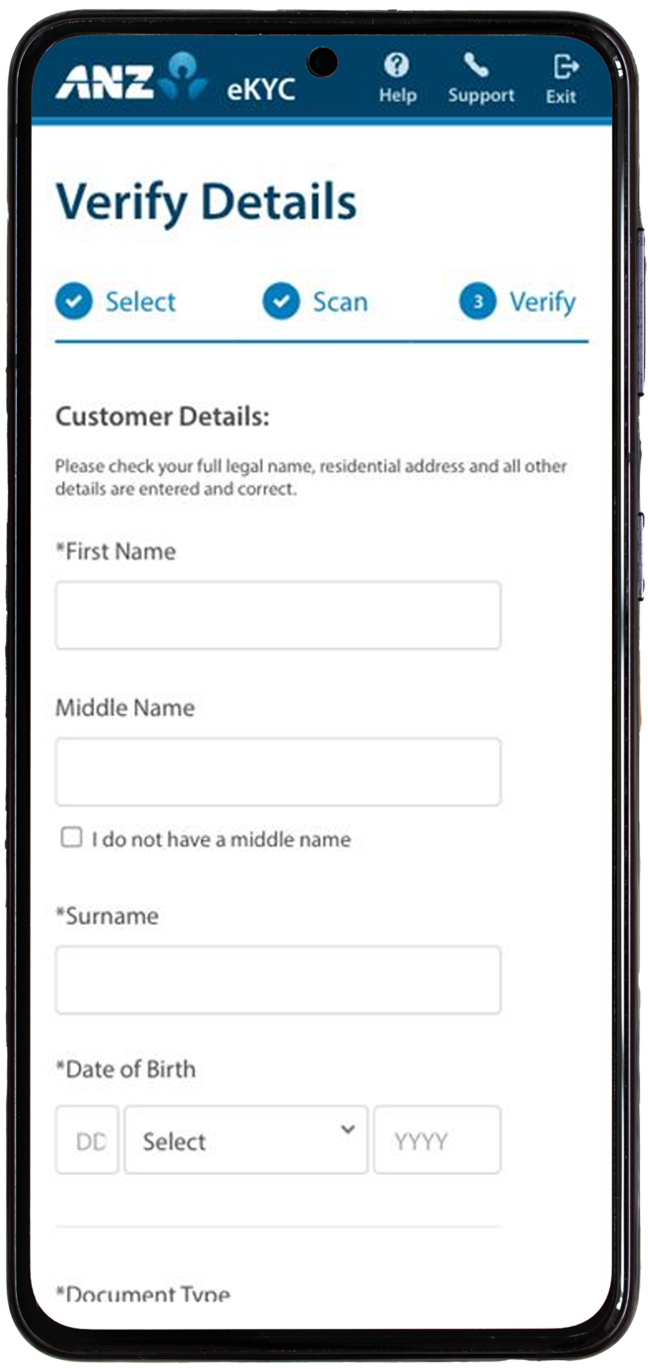
Step 7: Verify information and ensure any inaccurate details are correctly edited, then tick the checkbox and tap Confirm.
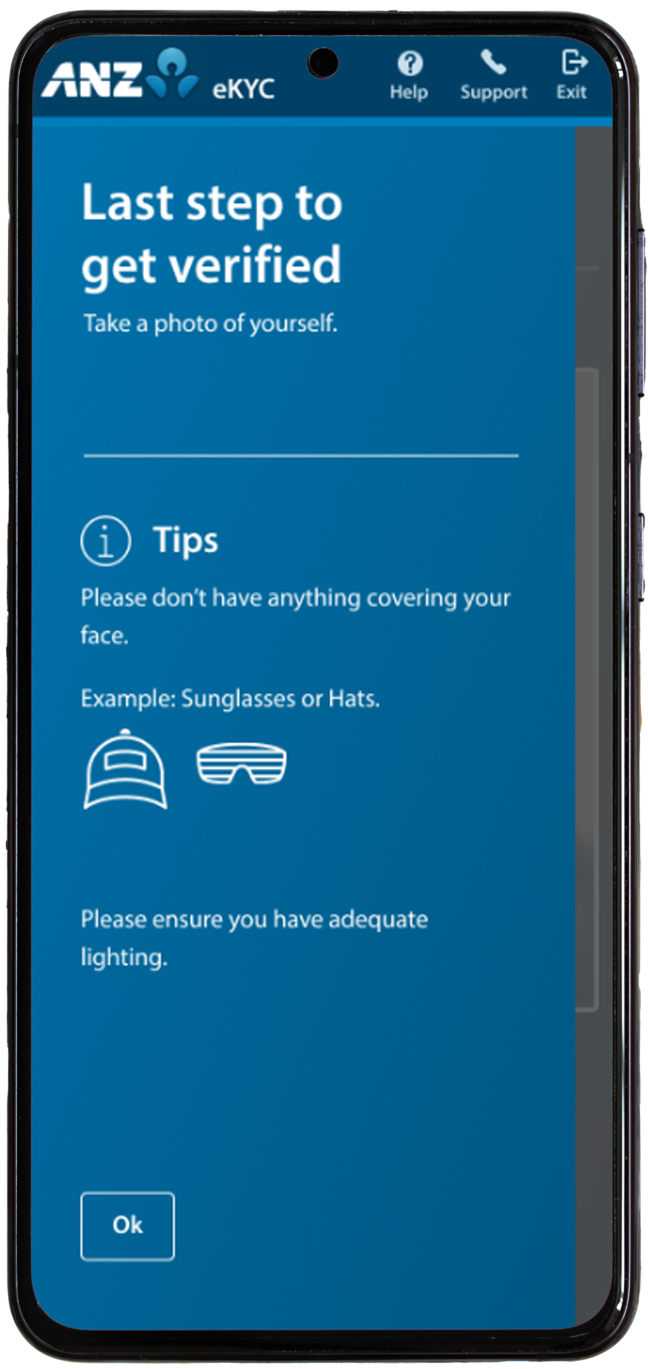
Step 8: Tap Ok to take a photo of yourself.
Tap the shutter button when ready.
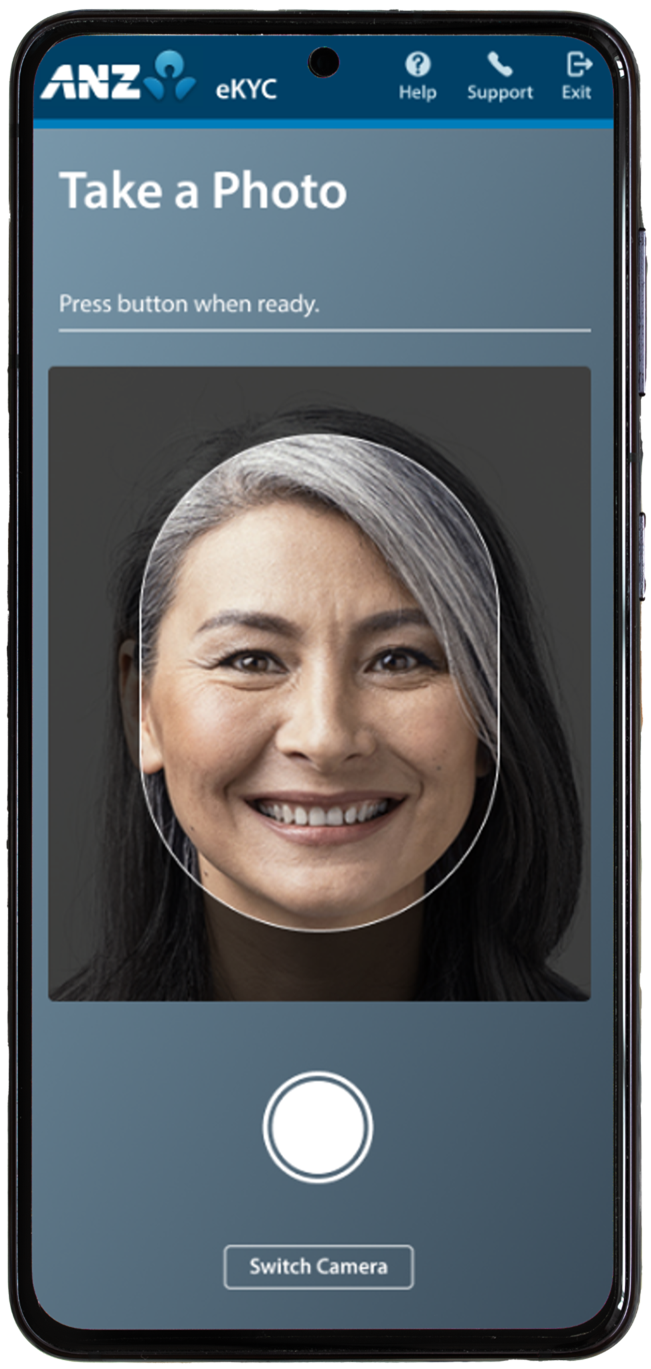
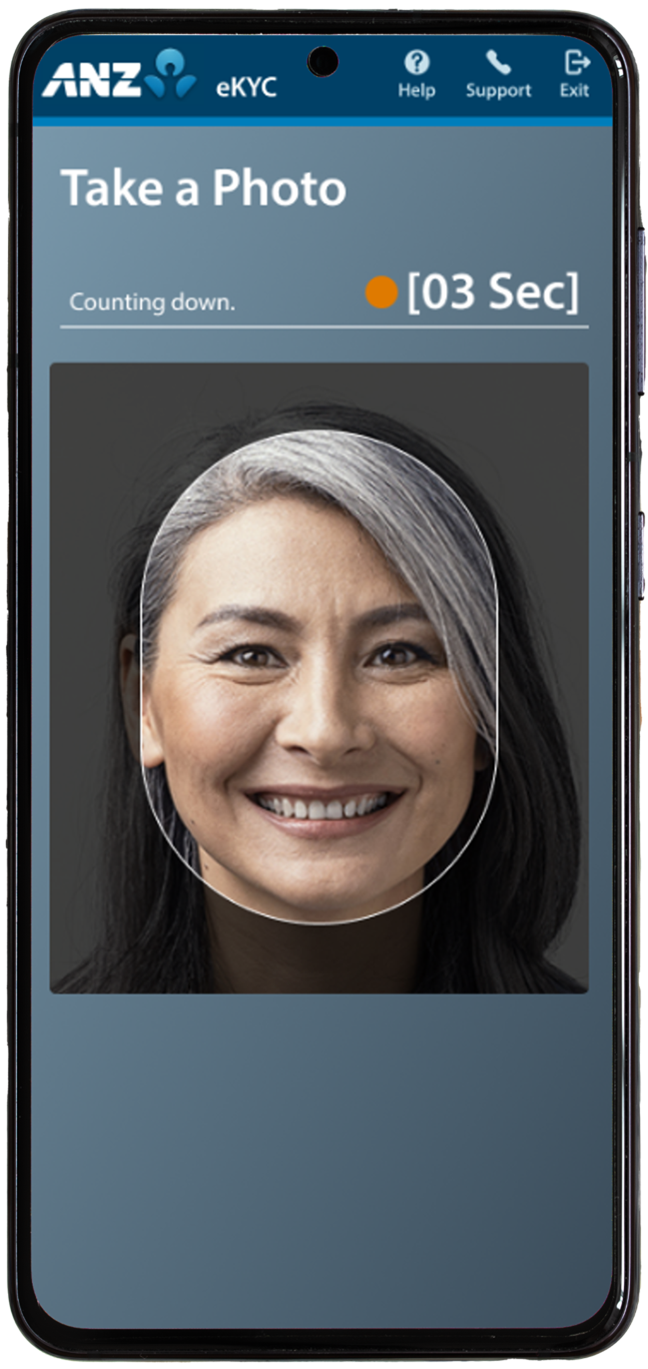
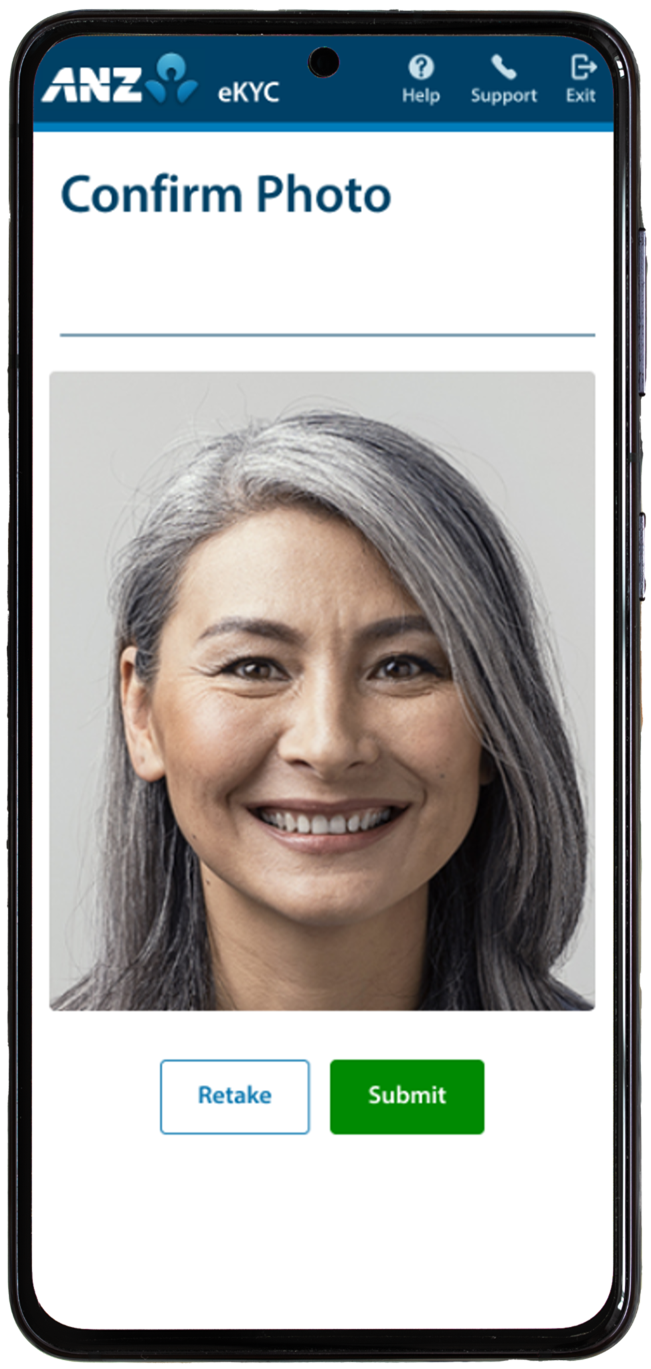
Step 9: If you would like to retake the photo, tap Retake otherwise tap Submit.
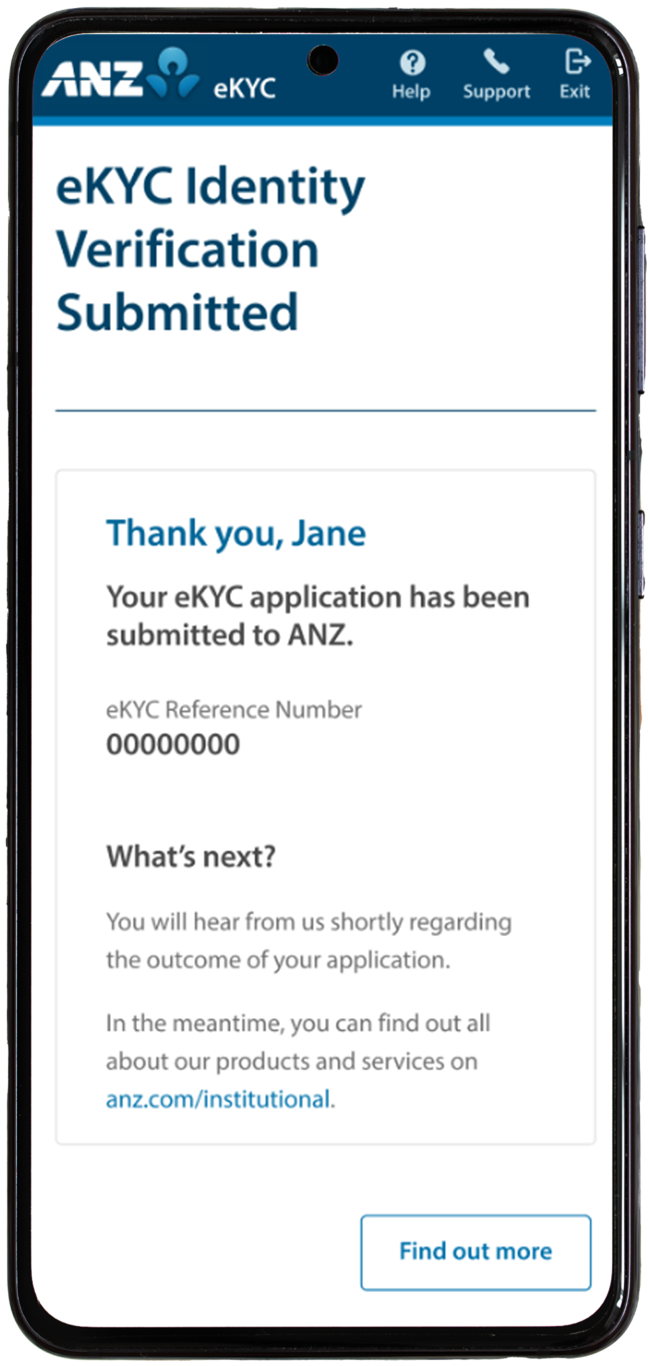
Result: Your eKYC application has been submitted. ANZ will communicate further information regarding the outcome via email.
To minimise the risk of fraud and identity theft, all Australian State and Territory governments have introduced a DLCN. This is a unique identifier found on your Driver Licence and it is updated every time your licence is re-issued, whether that be due to it being stolen, expired, or reported lost.
As part of the verification process, your DLCN is checked against Government and non-Government databases to confirm it’s the most recent version.
The DLCN field is mandatory, so it’s important you know where to find it on your Driver Licence.
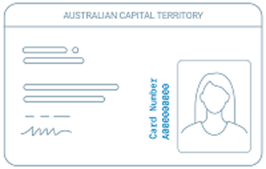
ACT
The DLCN is found on the front of the licence and runs vertically alongside the photo. It is alphanumeric (both numbers and letters) and displays 10 characters.
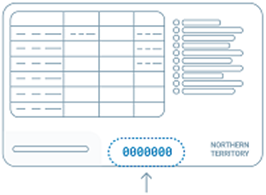
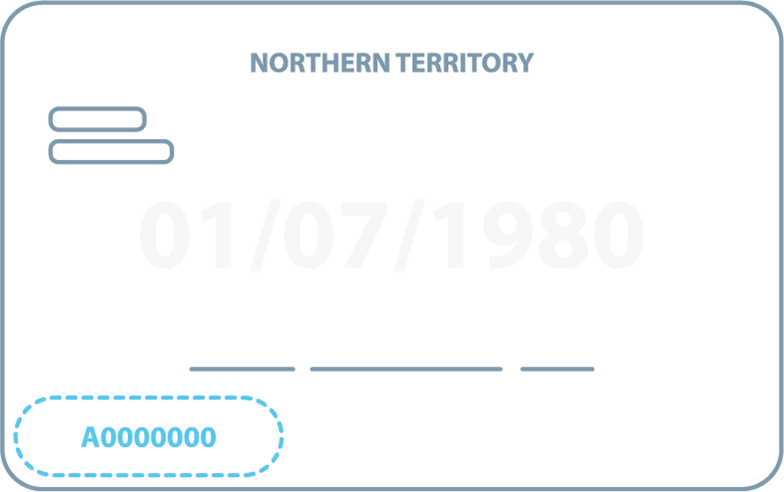
Northern Territory
The DLCN is found on the back of the licence and in the middle of the bottom section, OR on the back, bottom left-hand corner of the licence. It is made up of 6 to 8 numbers.
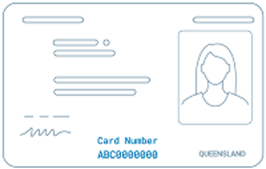
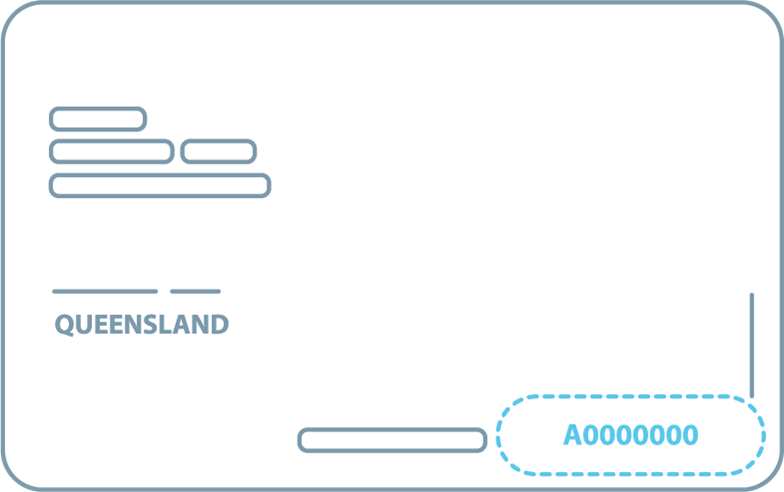
Queensland
The DLCN is found either on the front of the licence and in the middle of the bottom section, OR on the back, bottom right of the licence. It is alphanumeric (both numbers and letters) and displays 10 characters.
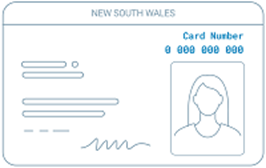
New South Wales
The DLCN is found on the front of the licence, on the top-right corner above your photo. It is made up of 10 numbers.
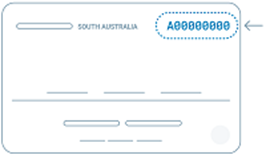
South Australia
The DLCN is found on the back of the licence, on the top-right corner. It is alphanumeric (both numbers and letters) and displays 9 characters.
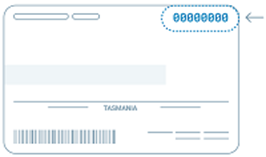
Tasmania
The DLCN is found on the back of the licence, on the top-right corner. It is alphanumeric (both numbers and letters) and displays 9 characters.
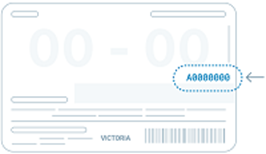
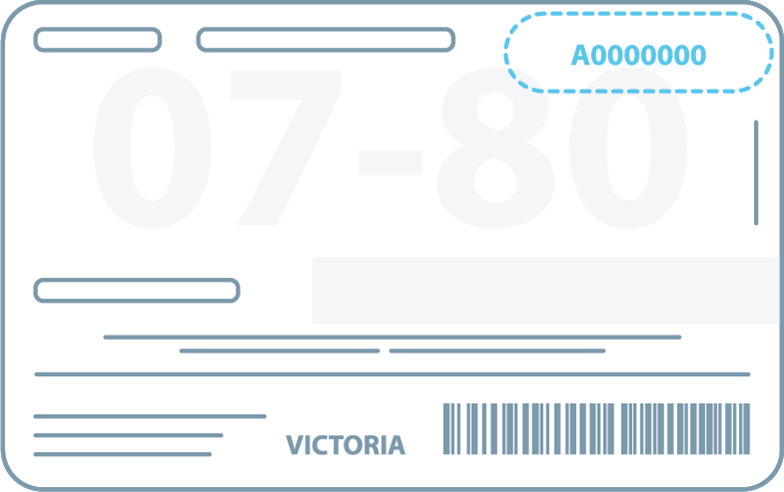
Victoria
The DLCN is found on the back of the licence, on the far right-hand side, just under your birth date, OR on the back of the licence, on the top right-hand corner, on top of your birth date. It is alphanumeric (both numbers and letters) and displays 8 characters.
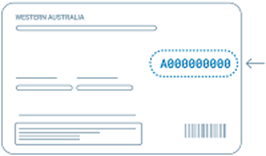
Western Australia
The DLCN is found on the back of the licence, just above the middle of the card on the right-hand side. It is alphanumeric (both numbers and letters) and can display 8 to 10 characters.
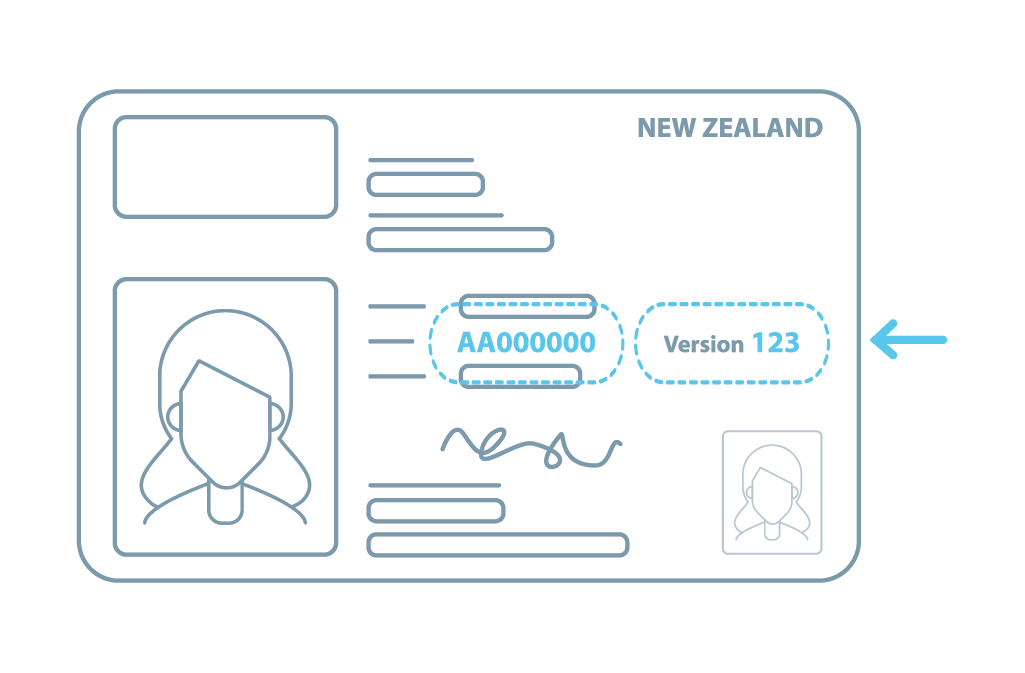
To minimise the risk of fraud and identity theft, New Zealand driver licenses include two key identifiers:
Driver Licence Number – a unique number that stays the same each time a new licence card is issued.
Version Number – this changes each time a new licence card is issued.
As part of the identity verification process, both numbers are checked against official databases to confirm the licence is current and valid.
These fields are mandatory, so it’s important to know where to find them:
Driver Licence Number is located on the front of the card, in the centre. It’s an 8-character alphanumeric code.
Version Number is also on the front, to the right of the Driver Licence Number. It’s a 3-digit number.